
Easy On Hold® for Avaya IP Office
Bring cloud-managed music and messages to your Avaya IP Office IP500 V2 using the Easy On Hold business audio player.

Avaya IP Office Streaming MOH Setup and Resources
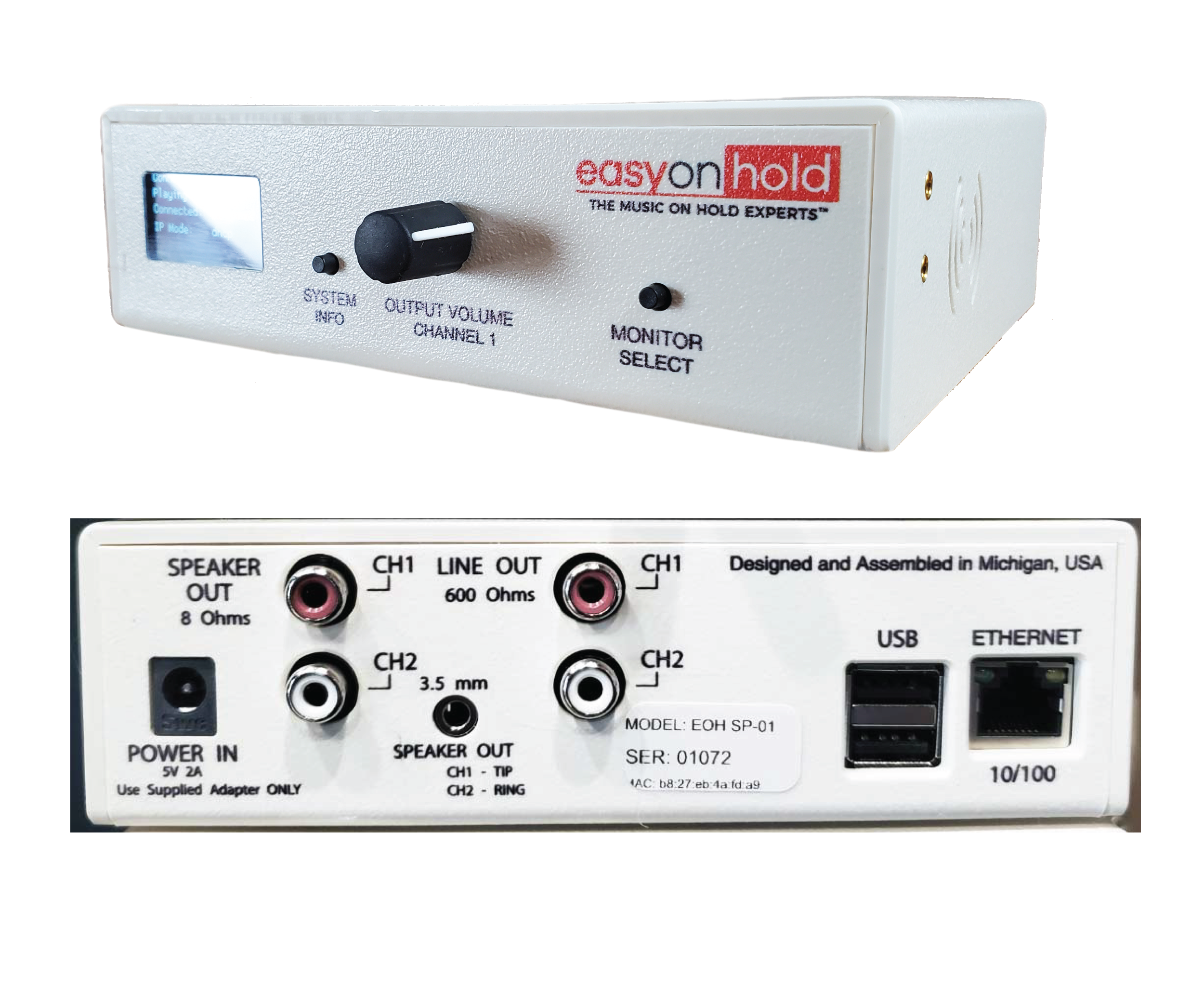
Give callers a changing mix of licensed music and custom messages with Easy On Hold®. For Avaya IP Office IP500 V2 systems, our two-channel business audio player receives your managed internet stream and supplies analog audio to the control unit's external AUDIO port.
Your team can schedule music and messages in the Easy On Hold Content Control Center™. Update promotions, seasonal information and business announcements without replacing the IP Office hold music file each time your content changes. The player also supports onboard or USB fallback content if network access is interrupted.
This setup uses the physical audio input on an IP500 V2 control unit. Have your Avaya administrator confirm your hardware, operating mode and software release before installation. Basic Edition uses different administration screens, and Linux-based Server Edition deployments require a separate source review.
For additional equipment details and background, read our custom on hold music guide for Avaya IP Office.
How the Avaya IP Office Streaming Solution Works
Provision the Managed Stream
Easy On Hold configures your business audio player and helps you set up licensed music and custom messages. Connect the player to power and your network, then confirm that the intended stream is playing.
Connect to the IP Office AUDIO Port
Connect the player's mono RCA line output to the 3.5mm stereo AUDIO input on the rear of the IP500 V2 control unit using the appropriate cable. Confirm the cable and output level with your installer before testing.
Select the External Music Source
In IP Office Manager, open System > Telephony > Tones and Music. Under Hold Music, set System Source to External. Save the configuration and schedule the required IP Office restart with your Avaya administrator. These steps apply to standard IP Office administration; Basic Edition uses different settings.
Test Hold Music and Call Routing
Where the default Hold Music short code is configured, dial *341# to check source 1, the System Source. Then place outside calls through holds, transfers and hunt groups. Check Hold Music Source assignments on incoming call routes and groups if callers hear a different source, and adjust the player output for clear audio.
Find the right streaming music on hold plan.
An Easy On Hold specialist can explain your options.
Avaya IP Office Music On Hold FAQs
Common questions about using an external streaming audio player with Avaya IP Office IP500 V2.
In this setup, the Easy On Hold business audio player receives the internet stream and sends analog audio to the IP500 V2 AUDIO input. IP Office uses that external input as its hold music source. The player provides the connection between your cloud-managed content and the phone system.
The instructions cover IP500 V2 hardware with an external AUDIO port and standard IP Office administration. Basic Edition has different music-on-hold controls. Linux-based Server Edition systems do not have this same physical input, so ask your Avaya administrator and Easy On Hold to review the deployment before choosing a solution.
Yes. Avaya documents PCM WAV files encoded at 8 kHz, 16-bit, mono. The system source file is named HoldMusic.wav, with a maximum length of 90 seconds on IP500 V2 or 600 seconds on Linux-based systems. That is a file-based alternative; the external player lets you manage changing content through Easy On Hold.
An incoming call route or hunt group can assign a Hold Music Source that overrides the System Source. Have your administrator check those assignments and test each actual call path. In a network of IP Office systems, source behavior also depends on the system handling the call.
Yes. Avaya specifies that changing the System Source requires an IP Office reboot. Coordinate the change with your Avaya administrator and schedule an appropriate maintenance window. After the restart, confirm the source and test outside calls before completing the installation.
Get Info & Request a Demo
Tell us a little about your business and we’ll show you how Easy On Hold can elevate your customer experience.